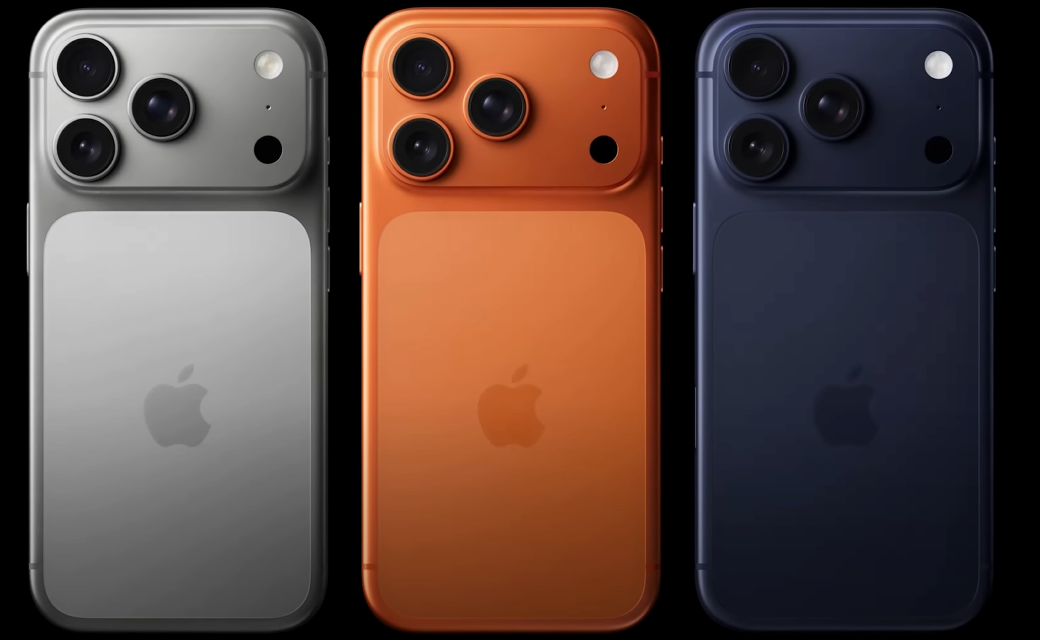
Just bought a new iPhone? Learn how to setup an iPhone step-by-step and discover 15+ hidden iPhone settings that even most Apple users don’t know! From stolen device protection to automation, this ultimate guide will make your iPhone smarter, safer, and way more fun.
Table of Contents
🧩 Introduction – Welcome to the Apple World 🍎
Alright, you’ve bought an iPhone — but the real question is, are you using it to its full potential?
Most people don’t! In fact, around 90% of iPhone users never explore the powerful settings that make iOS truly special.
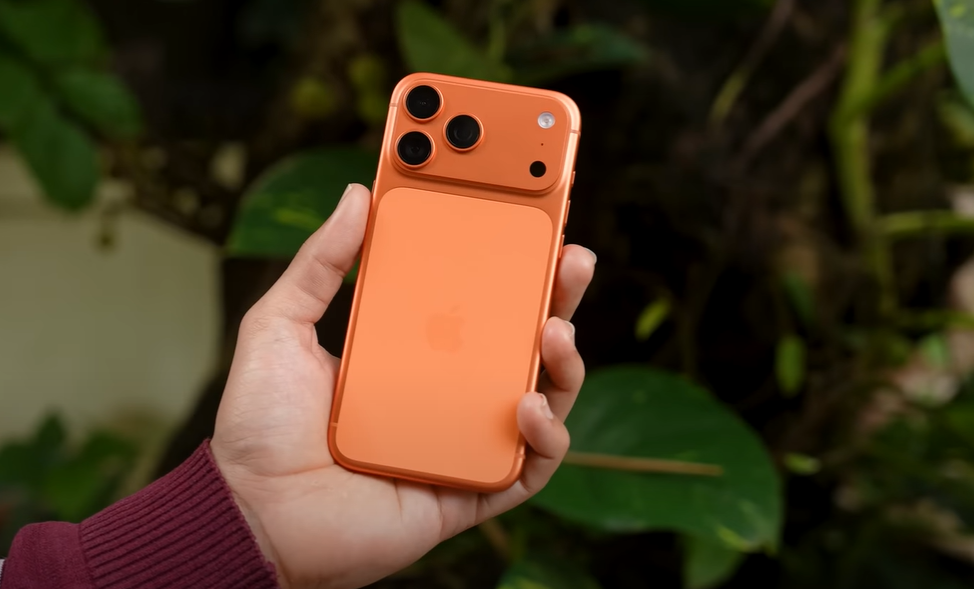
Whether you’ve just unboxed the latest iPhone 17 or you’re rocking an older model, this guide will help you set up your iPhone perfectly and unlock features that many people have no idea even exist.
When I first researched this, I discovered settings that blew my mind. I literally said, “Wait… I can do THAT with my iPhone?”
So, if you’re someone who just wants to use your iPhone efficiently, protect your privacy, save battery, and enjoy all the pro-level features — then grab your iPhone, sit tight, and follow along.
Let’s dive into the ultimate guide on how to setup an iPhone like a pro!
🔐 Step 1: Turn On Stolen Device Protection
First things first — security.
Apple recently introduced Stolen Device Protection, and it’s a must-enable feature.
What It Does
This setting ensures that if someone steals your iPhone, they can’t simply reset it, change your Apple ID password, or turn off Find My iPhone. You can add a time delay and location restriction for sensitive actions.
For example:
- Want to change your Apple ID password? You’ll have to wait an hour and verify your identity with Face ID.
- Want to reset your phone? You’ll need to be in a trusted location (like your home).
This prevents thieves from instantly wiping your device and selling it.
How To Enable It
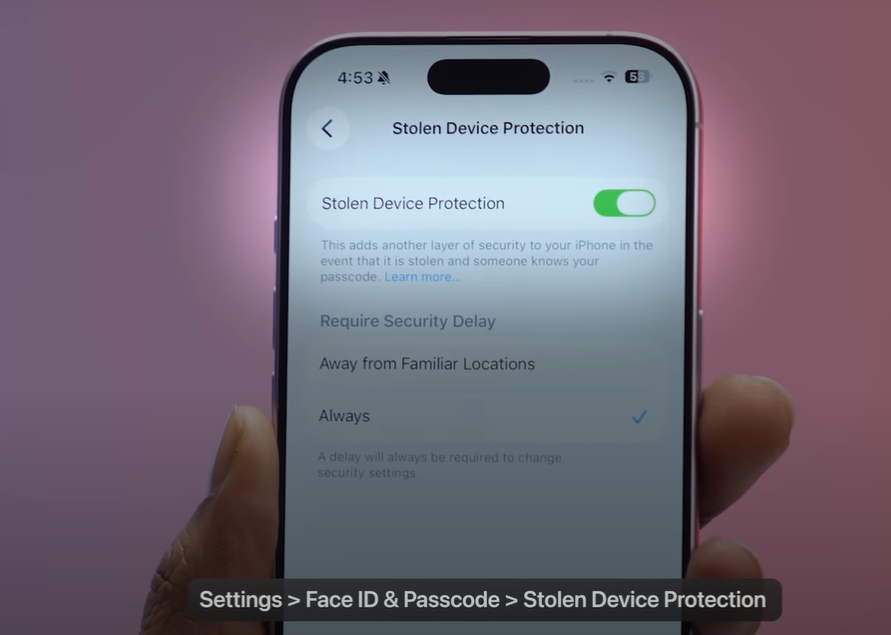
- Open Settings → Face ID & Passcode → Stolen Device Protection.
- Turn it ON.
- Choose which actions require a delay (e.g., password changes, resetting, disabling Find My).
And remember — limit access to your Control Center from the lock screen. Thieves often swipe down to put your phone in Airplane Mode, making it untraceable.
Pro Tip: Go to Settings → Face ID & Passcode → Turn Off “Control Center on Lock Screen.”
Also, enable the “Erase Data” option after 10 wrong passcode attempts. That way, even if someone tries guessing your password, your data stays safe.
🔋 Step 2: Optimize Battery Charging
The iPhone battery is smart — but only if you let it be!
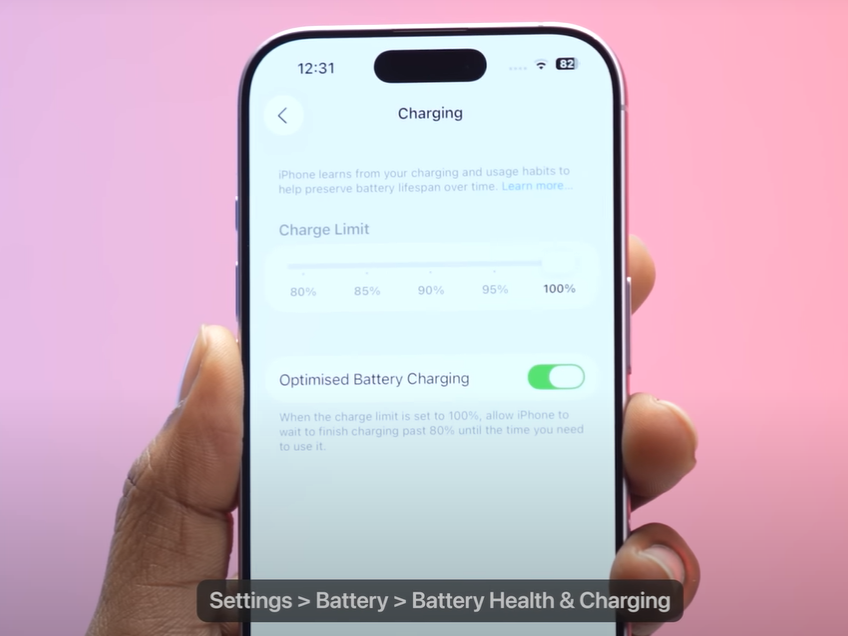
Go to Settings → Battery → Battery Health & Charging → Optimized Battery Charging and turn it ON.
Your iPhone learns your daily charging routine. Suppose you charge overnight — the phone will pause charging at 80% and only top up to 100% right before you wake up. This helps prevent battery wear.
Why It Matters
Over time, lithium-ion batteries degrade. By optimizing charging, you’re extending your battery’s lifespan — meaning fewer battery replacements and longer usage per charge.
If you really want to master how to setup an iPhone properly, this step is crucial.
🔒 Step 3: Configure Auto-Lock
Many people keep their screens on for 15–30 minutes — big mistake.
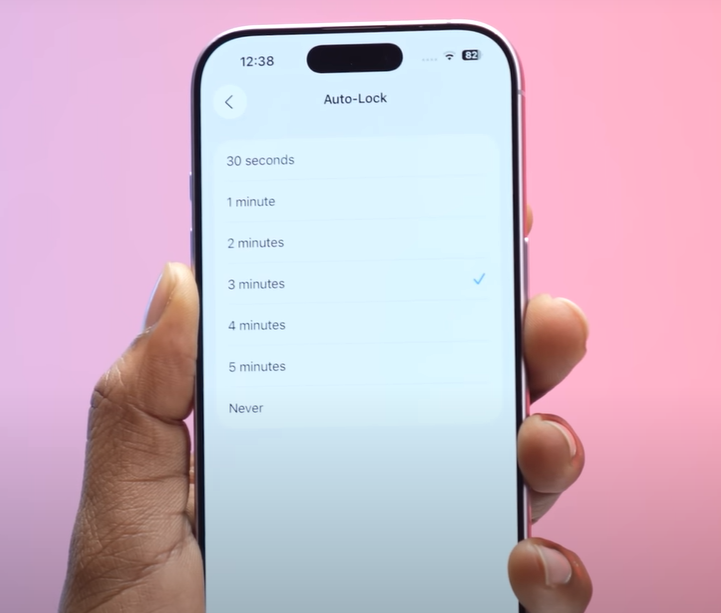
Not only does it drain battery, but it’s also a security risk. Imagine you’re at work and someone snatches your phone while the screen’s still unlocked!
Set a reasonable auto-lock time — ideally 30 seconds to 1 minute.
How to do it:
Settings → Display & Brightness → Auto-Lock → Choose 1 Minute
You can always use “Never” temporarily if you’re reading something long, but make sure to switch back later.
📸 Step 4: Camera Controls & Hidden Tricks
You would be surprised at how much more your iPhone camera can achieve.
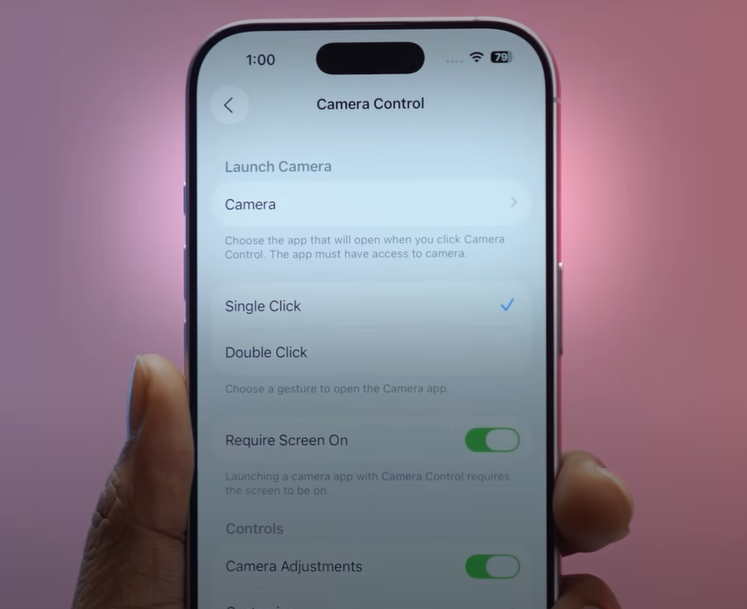
1. The New Button for Camera Control
This button can now be customized in Settings → Camera → Camera Control.
Do you want the scanner, cameras, or even portrait mode to open instantly? Absolutely feasible.
2. Save Storage Space
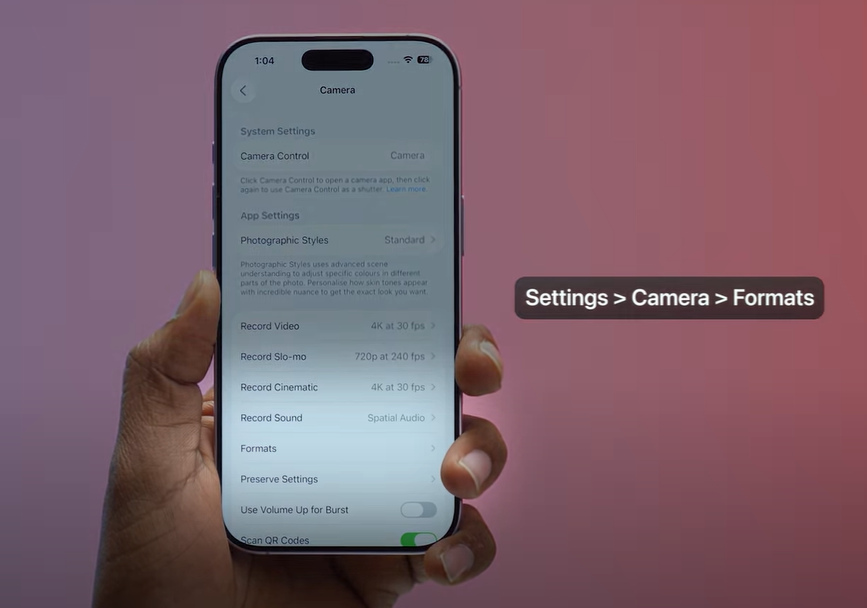
If you have a 128GB base model, photos and videos eat up space fast.
Go to Settings → Camera → Formats → High Efficiency.
This enables HEIC/HEVC format, which keeps quality high but cuts file size by almost 50%.
3. Perfectly Aligned Shots
Turn on Grid Lines and Level Indicators from the same menu.
They help keep your photos perfectly straight — no more tilted horizons!
🏠 Step 5: Customize Your Home Screen
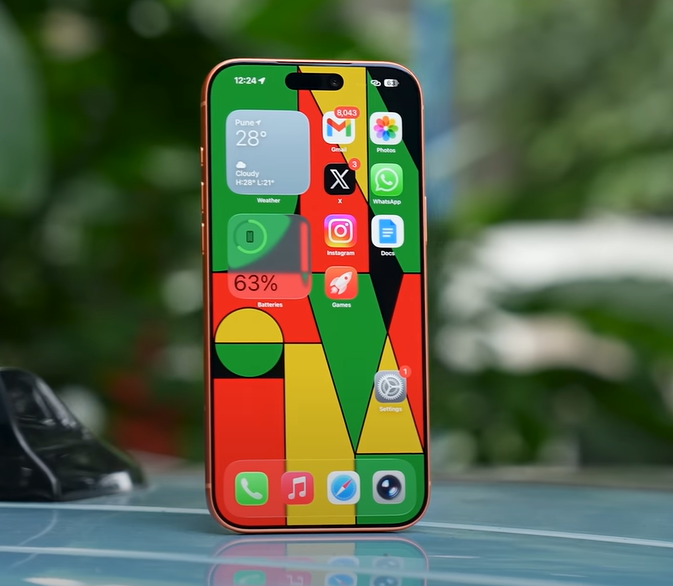
Apple has finally made iOS as customizable as Android — well, almost.
Why You Should Customize
Your home screen is your command center. The apps, widgets, and shortcuts you use most should be front and center.
Long-press anywhere on your home screen → Tap Edit Home Screen → Add or resize widgets, move icons, or even hide unused pages.
With iOS 18, you can also:
- Change icon colors and layout
- Resize widgets freely
- Add interactive widgets (like To-Do lists or smart home controls)
It’s fun, and once you personalize it, your iPhone truly feels like yours.
🎯 Step 6: Focus Modes
Focus Modes are life-savers for productivity.
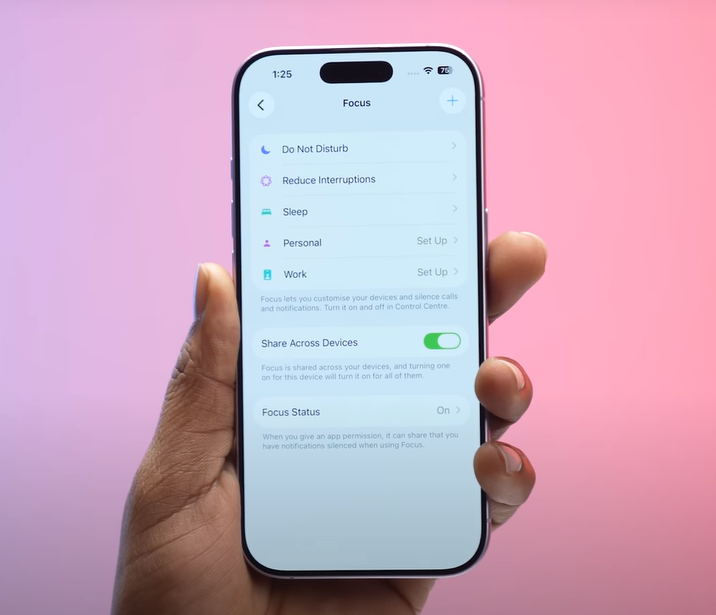
Think of them like profiles — Work, Personal, Sleep, Fitness, etc.
You can allow or block specific apps, notifications, and even wallpapers for each mode.
Example:
- When you’re at work, only Slack, Gmail, and Calendar can ping you.
- When you leave your office geolocation, Focus Mode automatically switches to Personal, allowing WhatsApp or Instagram notifications.
Setup:
Settings → Focus → Choose a Mode → Customize
This makes your iPhone adapt to your environment automatically.
⌨️ Step 7: Text Replacement – Type Smarter
If you often type the same phrases, addresses, or email replies, this feature will blow your mind.
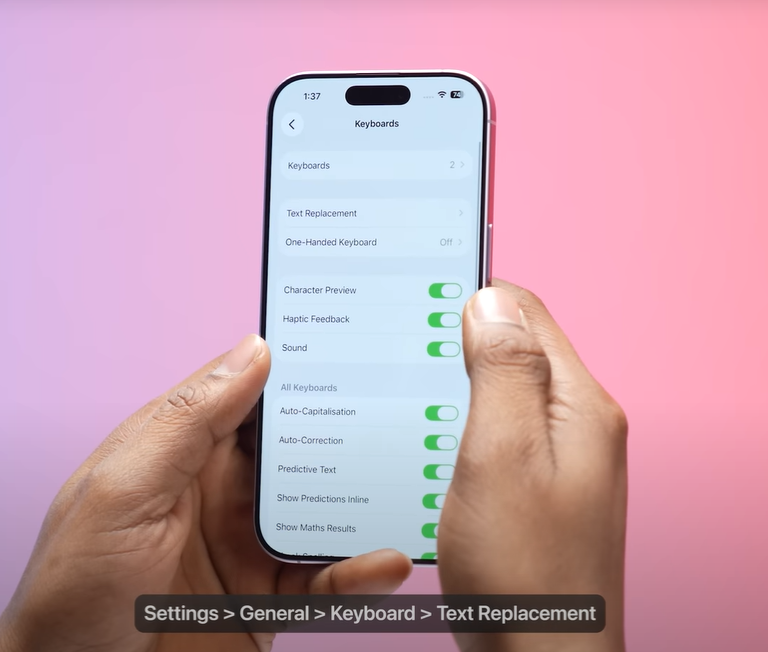
Go to Settings → General → Keyboard → Text Replacement.
For example:
- Type “@add” → It expands to your full address.
- Type “sig1” → It inserts your email signature.
You can create hundreds of shortcuts.
This trick saves minutes every day and makes texting, emailing, and posting super fast.
⚙️ Step 8: Shortcut Automations
Here’s where your iPhone turns into a true smartphone.
The Shortcuts app lets you create powerful automations:
- When you reach home → Turn on Wi-Fi, disable Mobile Data.
- At 8 PM → Enable Night Mode, reduce brightness.
- When you open Instagram → Set Focus Mode to “Social.”
How to Create Automations
- Open the Shortcuts app.
- Tap the Automation tab.
- Choose a trigger (time, location, app).
- Add actions.
You can automate nearly everything — brightness, Wi-Fi, notifications, or even system sounds.
Once you explore this, you’ll never want to go back. It’s like creating your own mini-AI but simpler!
🔘 Step 9: Customize the Action Button
If your iPhone has the new Action Button, congratulations — you’ve got an extra power tool!
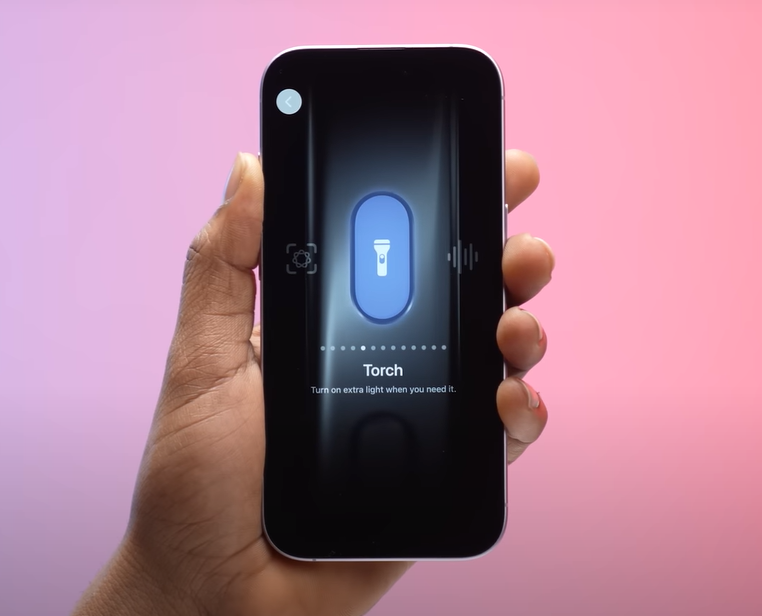
By default, it opens the camera or toggles silent mode. But now you can assign any action:
- Turn on flashlight
- Start voice recording
- Recognize music via Shazam
- Launch any Shortcut automation
To customize:
Settings → Action Button → Choose Function
It’s small but incredibly handy — especially when you need quick access while filming, walking, or driving.
🚨 Step 10: Emergency Features
Your iPhone can literally save your life — but only if you set it up correctly.
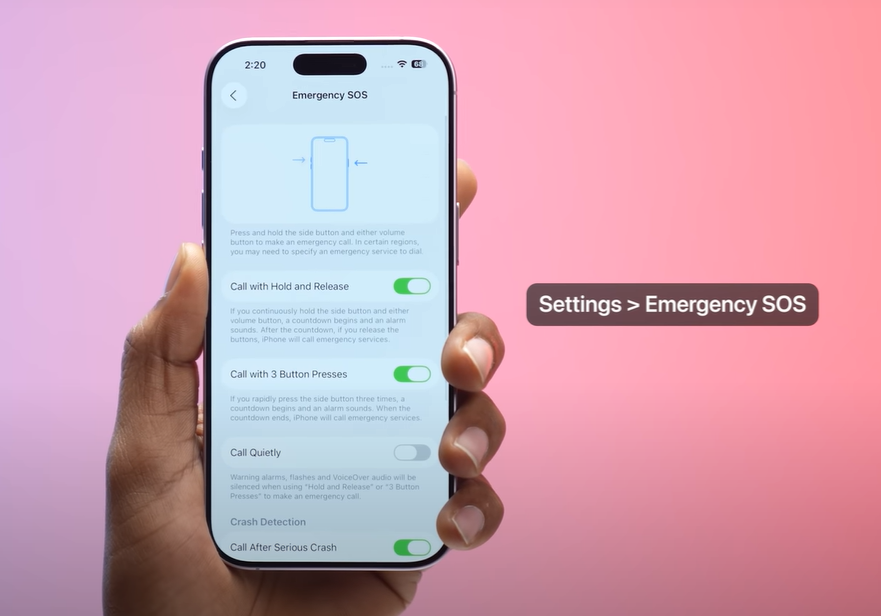
Go to Settings → Emergency SOS and add:
- Emergency Contacts (people who’ll get a message and location if SOS is triggered)
- Medical ID (blood group, allergies, emergency notes)
This integrates with the Health app and emergency services.
In the U.S. and many countries, pressing the side button five times calls emergency services instantly.
It’s one of the most underrated safety features, and setting it up takes just 2 minutes.
🧠 Step 11: Use Visual Intelligence
Apple’s Visual Intelligence (aka Visual Lookup) is Apple’s take on AI — and it’s getting better.
If you take a photo or screenshot of an object, long-press it → choose “Look Up.”
Your iPhone will identify the object and even show where to buy it online.
It’s great for identifying plants, dog breeds, landmarks, or tech gadgets.
Currently, it’s not as advanced as Google Lens, but it’s improving fast with iOS 18.
🎛️ Step 12: Control Center Customization
The Control Center is your quick-access panel, but most people never customize it!
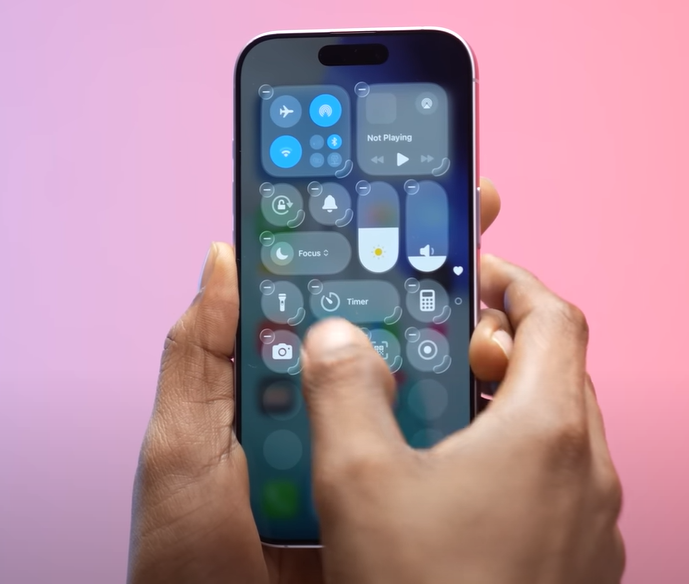
Why You Should
By default, Wi-Fi, Bluetooth, and brightness controls dominate the panel. But you can add:
- Screen recording
- Low Power Mode toggle
- Notes or Calculator shortcuts
- QR Scanner
- Sound Recognition for alerts
To customize:
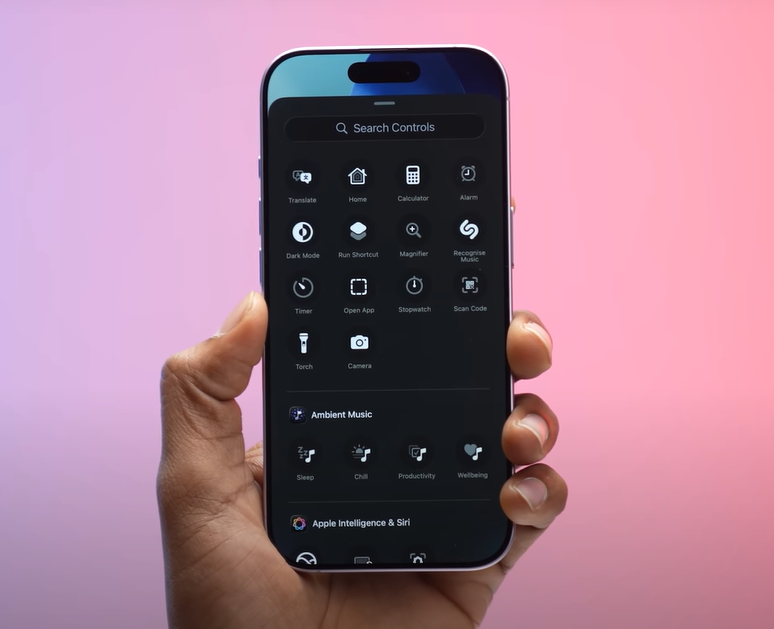
Settings → Control Center → Customize Controls
You can even make icons bigger or smaller and arrange them however you like.
🔓 Step 13: Lock Screen Customization
The lock screen isn’t just for wallpapers anymore.
Now you can add:
- Widgets (for weather, fitness, battery, or calendar)
- Shortcuts like flashlight, Shazam, or camera
- Multiple lock screens for different Focus Modes
This means your lock screen can be functional as well as aesthetic.
Create one for work, one for travel, and one just for chill weekends!
☎️ Step 14: Native Call Recording & Transcription
Apple has finally listened!
With iOS 18, you now have native call recording — no third-party apps needed.
During a call, a waveform icon appears. Tap it to start recording (both sides are notified for privacy).
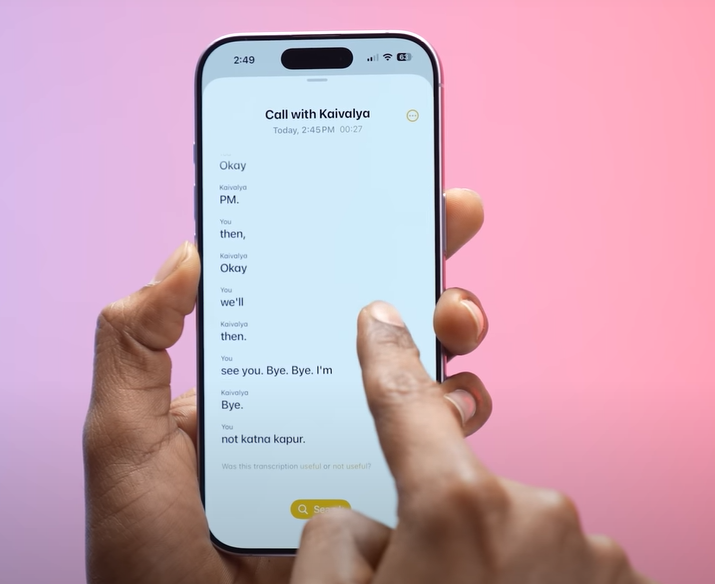
Even cooler — you can transcribe calls. If someone speaks in Hindi, you can get an English transcript in Notes.
It’s still a bit rough but surprisingly useful for interviews or meetings.
💡 Bonus: Pro Tips for Every iPhone User
- Use Siri Shortcuts – Create voice commands like “Hey Siri, edit thumbnail” or “Start vlog setup.”
- Enable Haptic Feedback Keyboard – Settings → Sound & Haptics → Keyboard Feedback → Haptic.
- Scan Documents with Notes App – Open Notes → Camera → Scan Documents.
- Check Background App Activity – Settings → Battery → Battery Usage by App.
- Use Back Tap Gestures – Settings → Accessibility → Touch → Back Tap → Assign actions for double or triple tap.
- Hide Photos Securely – Photos → Select → Hide → Hidden Album (Face ID protected).
- Use iCloud Backup Properly – Keep all your photos, notes, and messages synced safely.
❓ FAQs – How to Setup an iPhone (2025 Edition)
Q1: How do I setup my new iPhone for the first time?
Start by connecting to Wi-Fi, signing in with your Apple ID, setting Face ID, and enabling Find My iPhone. Then follow this guide to secure and customize everything.
Q2: What are the first settings to change on a new iPhone?
Enable Stolen Device Protection, set up Auto-Lock, turn on Optimized Battery Charging, and add Emergency Contacts.
Q3: How do I transfer data from an old iPhone?
Use Quick Start. Place both phones near each other, and your new iPhone will automatically import apps, settings, and data.
Q4: Should I update my iPhone to iOS 18?
Yes! It brings better privacy, improved Visual Intelligence, customizable widgets, and new camera features.
Q5: How can I make my iPhone faster?
Disable Background App Refresh, clear Safari cache, and restart weekly. Also, avoid keeping unused widgets.
🌐 External Links & Resources
- Apple Official iPhone Setup Guide
- How to Use iPhone Focus Modes
- Apple Support: Manage Battery Health
- Use the Shortcuts App on iPhone
- Visual Lookup Feature Explained
🎬 Final Thoughts
In 2025, that is how to configure an iPhone like a pro!
You have now explored all of the powerful, secret settings that improve your iPhone’s intelligence, speed, and security.
Whether you are upgrading from an older model or fresh to iOS, take 20 minutes to apply these adjustments. You will think your phone has been improved, I can assure you.
If you think this information is helpful, share it with your friends who recently bought an iPhone, and do not forget to bookmark this page for future use.
I will be giving you more tech-savvy instructions in the future, so be sure to return often!
Recent Posts
- Vivo V60e Review: Unboxing, Features, Camera Test & Performance – Is It Worth It in 2025?
- Xiaomi 17 Pro & Xiaomi 17 Pro Max Review: The Ultimate Flagship Showdown
- OnePlus Pad Lite Review: The Perfect Budget Tablet for Students and Entertainment Lovers
- OnePlus Nord Buds 3R Review: Budget King of 2025? Unboxing, Features, Sound Test & Verdict
- Lenovo Legion Pro 7i RTX 5090 Review (2025): The Ultimate AI-Powered Gaming Laptop
[…] Ultimate Guide: How to Setup an iPhone Like a Pro (2025 Edition) […]
[…] Ultimate Guide: How to Setup an iPhone Like a Pro (2025 Edition) […]
[…] Ultimate Guide: How to Setup an iPhone Like a Pro (2025 Edition) […]